



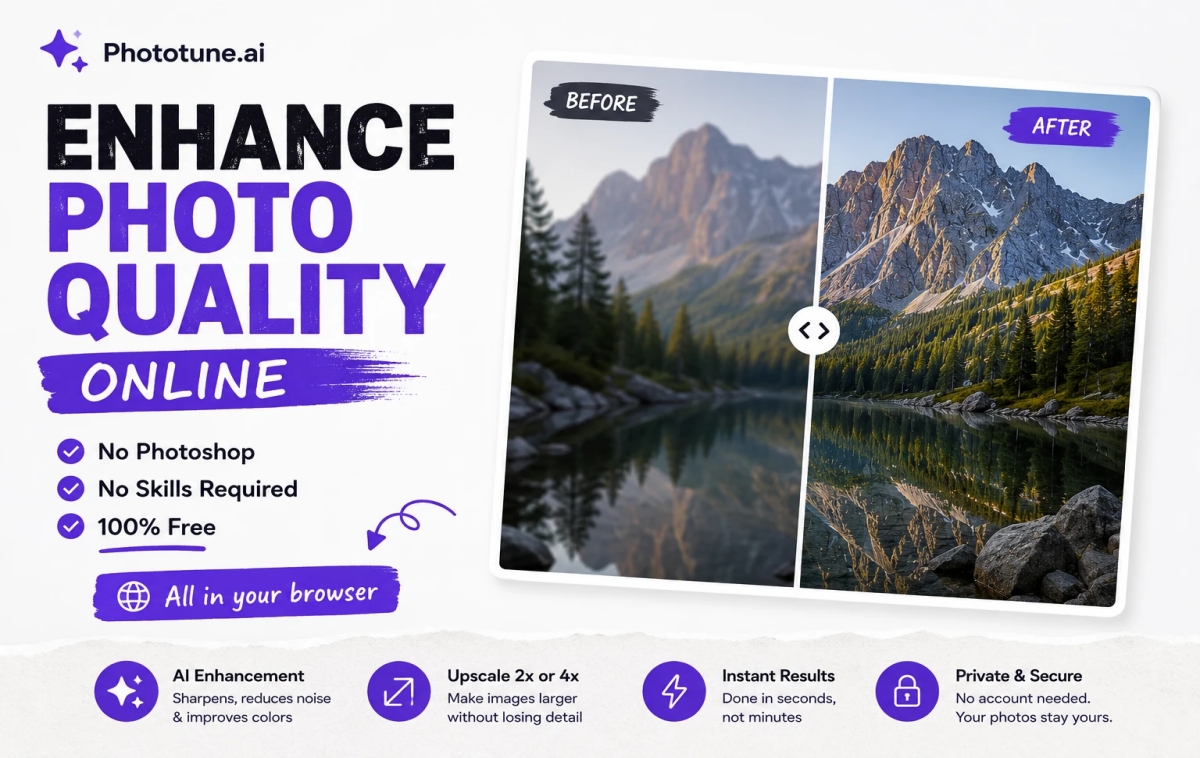
Photoshop is the industry standard for photo editing, but it’s overkill for the most common task people need: improving the quality of a photo. Subscription costs, a steep learning curve, and a complex interface designed for professionals make it unnecessarily complicated when you just want a sharper, clearer image. AI has made it possible to enhance photo quality online free without any of that — no software, no subscription, no skills required.
Why Photoshop Isn’t Necessary for Quality Enhancement
Improving photo quality in Photoshop typically involves a combination of tools and adjustments: the Sharpen filter, Noise Reduction, Camera Raw adjustments, and sometimes the Super Resolution feature for upscaling. Getting good results requires understanding how each tool affects the image and how to balance them — push sharpening too far and you get artifacts; apply too much noise reduction and you lose real detail.
This is a meaningful skill that takes time to learn well. For someone who just needs a clearer photo for a listing, a profile picture, or a personal memory, learning Photoshop’s adjustment layers and filters is a disproportionate amount of effort for the result needed.
What AI Does Instead
AI photo enhancement combines what would be multiple manual Photoshop steps into a single automated process. The model has learned from millions of training images what improvements typically help — sharpening where detail is missing, noise reduction where grain is present, color correction where tones are flat — and applies the right combination automatically based on what it detects in your specific photo.
| Photoshop Manual Workflow | AI Enhancement Equivalent |
| Open image, assess what needs fixing | AI automatically analyzes the image |
| Apply Unsharp Mask or Smart Sharpen | Sharpening applied automatically as part of enhancement |
| Apply Noise Reduction filter, adjust sliders | Noise reduction applied automatically, balanced with sharpening |
| Use Camera Raw for color/exposure adjustments | Color and tone improvements applied automatically |
| Use Super Resolution or Image Size for upscaling | Select upscale level (2x/4x) — AI reconstructs detail |
| Export and save | Download — done in seconds total |
Step-by-Step: Enhance Photo Quality Without Photoshop
Step 1: Go to Phototune.ai and open the AI image enhancer. No account, no download — the tool works directly in your browser on desktop or mobile.
Step 2: Upload your photo. Drag and drop or click to browse. JPG, PNG, WEBP, and AVIF formats are supported up to 10MB.
Step 3: Choose your enhancement mode based on your photo type — Enhance for general improvement, Portrait for faces, Old Photo for aged images, Text Enhance for documents and screenshots, or Unblur for blurry shots.
Step 4: Select an upscale level if you also need a larger image — 2x or 4x.
Step 5: The AI processes everything automatically in seconds. Compare the before and after, then download your enhanced photo at full resolution.
What You’re Trading Off by Not Using Photoshop
It’s worth being honest about the trade-off. Photoshop gives you precise, manual control — you can adjust exactly how much sharpening, exactly which areas get noise reduction, and fine-tune every aspect individually. AI enhancement gives you a single automated result based on what the model determines is best.
For most everyday use cases — product photos, social media images, personal photos, documents — the AI result is excellent and requires zero learning curve. For situations requiring very specific, customized editing (a professional photographer fine-tuning a hero shot for a magazine cover, for example), manual tools still offer more control.
The practical reality: for the vast majority of people who just want a clearer, sharper photo without spending time learning software, AI enhancement is the better choice.
Common Situations Where This Helps
E-commerce sellers without design experience: product photos that look slightly soft or low-quality can be improved in seconds without hiring a designer or learning editing software.
Anyone with old family photos: scanned prints or early digital photos that have lost quality over time can be restored without specialized restoration knowledge.
Social media users: phone photos that look a bit flat or soft before posting can be quickly improved for a more polished result.
Small business owners: marketing materials, website images, and social posts that need a quick quality boost without budget for a designer.
Students and professionals: screenshots, document photos, or presentation images that need text clarity improved for sharing or studying.
Format and File Handling
Phototune.ai supports JPG, PNG, WEBP, and AVIF files up to 10MB, processes everything locally in your browser, and doesn’t store your images after processing. No account means no personal data collected.
Ready to skip Photoshop entirely? Use Phototune.ai to improve image quality online — upload your photo, select your enhancement mode, and download a sharper, cleaner result in seconds. No software, no learning curve, no cost.


